

Measuring AI chatbot performance in WordPress starts with a simple question: did the visitor get the help they needed? More conversations can show that people are using your chatbot, but the useful results are accurate answers, a clear route to your team, and completed actions you can verify.
This guide shows how to combine WPiko Chatbot analytics with conversation reviews and business records. You will learn which numbers WPiko reports, which outcomes need your own checks, and how to turn a regular review into better answers. All numerical examples below are illustrative, not results from a WPiko customer.
Start with one business goal
Choose the job your chatbot should do before deciding what to measure. A support chatbot might help visitors understand delivery and returns. A service business might use it to collect useful enquiries. A WooCommerce store might help shoppers find products and check existing orders.
Write a goal you can check: “Visitors should get the correct delivery information or a clear contact option when their question needs a person.” This gives you a way to judge a conversation beyond its message count.
- Support: check whether routine questions were answered correctly and exceptions reached your team.
- Enquiries: check whether contact requests contain enough information for a useful follow-up.
- Shopping: check whether product and order answers match your store, then measure purchases separately.
Keep the same goal and review rules when comparing periods. A campaign, a new product range, or a change to the pages where the chatbot appears can change the type of visitor using it.
Know what WPiko measures
In the free plugin, WPiko AI Chatbot → Dashboard provides a basic overview of conversations, messages, users, and recent activity. Monitor → Conversations lets you read individual chats and use the available transcript download and translation tools. You can begin checking answer quality without Pro.
With an active Pro license, open WPiko AI Chatbot → Monitor → Analytics. Choose the last 7, 30, or 90 days, or a custom range. The overview reports Total Conversations, Total Messages, Unique Users, and Error Rate. Further reports show message activity, conversation length, peak hours, locations, and devices. See the Analytics Dashboard guide for the controls.
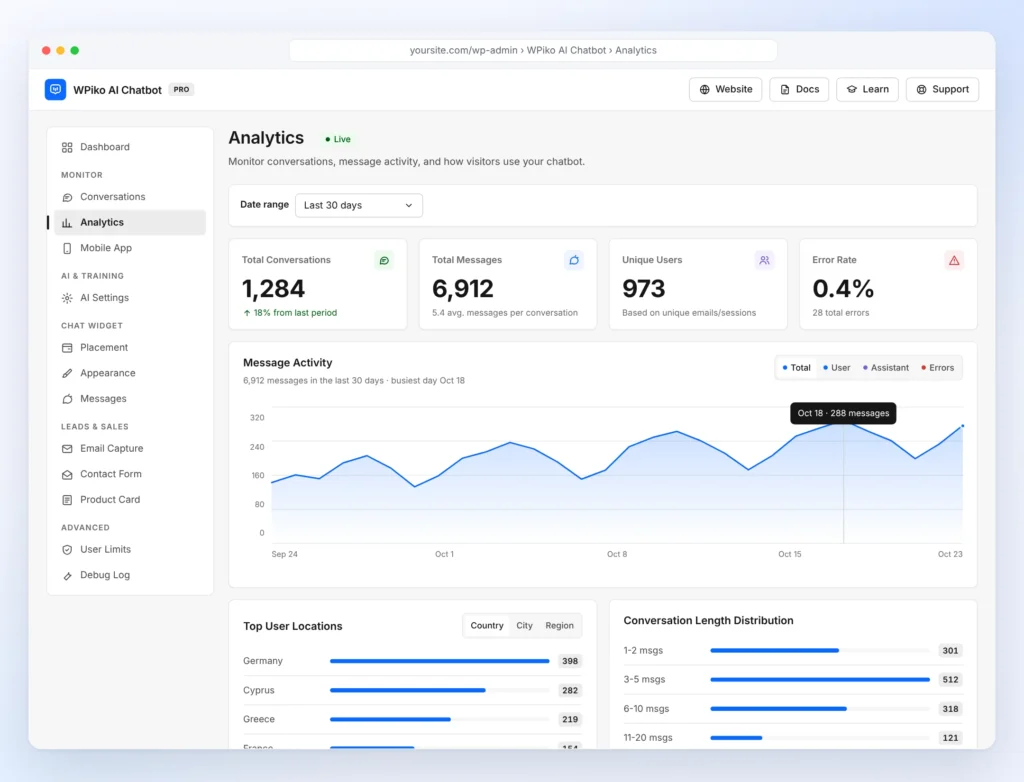
These reports describe recorded activity and technical errors. Answer accuracy, confirmed resolution, customer satisfaction, and sales attribution require additional review or measurement. They are not automatic scores in this Analytics screen.
Seven useful measures of AI chatbot performance
1. Conversation volume and unique users
Total Conversations tells you how many distinct chat sessions had records in the selected period. Unique Users is based on the recorded email address when available, otherwise the chat session. Treat it as an approximate measure of reach: one person can use several sessions or devices.
Compare activity across similar periods and consider changes in website traffic. Fifty conversations during a promotion may reflect more visitors rather than a better chatbot. A drop can also deserve attention if you recently changed visibility settings or the greeting.
If you want a chatbot usage rate, first define the denominator, such as visits to pages where the chatbot was available. That requires separately configured website tracking with compatible definitions. Dividing chat sessions by every visitor on the website can produce a misleading result.
2. Messages per conversation
WPiko Pro shows average messages per conversation and a conversation-length distribution. These counts describe an exchange of messages, not elapsed time. A chat with ten messages is not necessarily ten minutes long.
Use the distribution to select examples for review. A short exchange may contain one clear question and one useful answer, or a visitor who gave up. A long exchange may be a productive product discussion, or repeated attempts to get the same answer.
For example, if a visitor asks about delivery three times, inspect the wording of the replies and the source policy. A clearer first answer may shorten the chat while improving the visitor’s experience. The aim is to remove unnecessary back-and-forth.
3. Technical errors
The Error Rate card and the Errors view in Message Activity help you spot recorded technical failures. A chatbot can have no logged errors and still give an incomplete or incorrect answer, so review technical reliability and answer quality separately.
When errors rise, inspect the affected conversations and the Dashboard’s Attention required section. The connection troubleshooting guide and Debug Log guide can help you identify the cause. After fixing it, test a real question again.
Compare error counts alongside usage. Two errors in ten interactions deserve a different reading from two errors during a busy month. Use the dashboard’s definition consistently rather than substituting your own denominator for its Error Rate.
4. Answer quality
Review a repeatable selection of conversations in Monitor → Conversations. If there are only a few, read them all. For a busier site, choose a spread of dates and topics, then inspect error cases and unusually long chats separately so they do not distort your routine sample.
Check each answer against the information the business actually provides. Was it accurate? Did it address the question? Did it make an unsupported promise? Did it direct the visitor to a person when the source information was insufficient? Record “unclear” when you cannot verify an outcome.
A simple review sheet can include the date, topic, answer-quality result, source that needs updating, and follow-up action. If you calculate an answer-quality percentage, define what passes and record the number reviewed beside it. A percentage based on five checks should not carry the same weight as one based on a hundred.
For a WPiko example, suppose the chatbot keeps missing a delivery exception. Clarify the policy page, then refresh it through Quick learn from your pages. Pro users can also use website scanning or the Q&A Builder. Retest the original question and a few variations before judging the next period.
5. Resolution and human handoff
For your manual review, use a small set of outcome labels: resolved by the chatbot, handled by your team, unresolved, or unclear. Decide what evidence each label needs. A visitor confirming the answer is useful evidence. A conversation simply ending does not prove resolution.
WPiko Pro supports Admin Takeover and Smart Handoff. A team member can take over a conversation in the Mobile App and later release it back to AI. Read the transcript to assess whether the transition helped. The Analytics screen does not automatically turn these exchanges into a resolution or handoff score.
A handoff can be the right outcome for a refund exception, an account problem, or a visitor who asks for a person. Record why help was needed so you can distinguish missing knowledge from requests that properly require your team.
6. Useful enquiries and completed purchases
For a service business, count enquiries that your team can act on. WPiko Pro’s email capture and contact form provide ways to collect details, but an email address alone does not establish purchase intent. Review whether the request is relevant and whether someone followed up.
For WooCommerce, WPiko Pro can recommend products, display product cards, and answer supported order questions. Check those answers against your store. Use your order records or correctly configured ecommerce analytics to measure completed purchases. Showing a product card is not a sale.
A comparison between shoppers who chatted and those who did not can reveal a pattern, but it cannot by itself prove the chatbot caused a purchase. Visitors who choose to chat may already be more interested. Keep that limit in mind when reporting results or estimating return on investment.
7. Peak hours and device patterns
Peak Activity Hours can help you choose when a team member should be available. Messages by Device helps you decide which screens to test first. These reports point you toward practical checks rather than judging success on their own.
If many messages come from mobile devices, test the full experience on a phone: open the chat, read an answer, follow a link, and submit the contact form if enabled. Check that the widget leaves room to use the page and that the input remains usable when the keyboard opens.
Location patterns can also help you choose languages to test. Verify important policy and product answers in those languages, and review the interface text your visitors see.
Add website tracking when you need business outcomes
Google Analytics can help connect website interactions with goals when the required tracking has been implemented. Start by checking whether a suitable event is already collected. For interactions that need additional measurement, Google documents how to implement custom events. Important events can then be marked as key events.
For example, a developer could implement an event when a visitor sends their first chat message and another when a contact request succeeds. These would be custom tracking for your site, not events supplied automatically by WPiko’s Analytics screen. Test that each action is recorded once and that the success event fires only after success.
Keep event data limited to what you need, such as an action name or broad page category. Do not send chat transcripts, names, email addresses, or other personal details into Analytics. Follow Google’s guidance on avoiding personally identifiable information when configuring tracking.
Build a practical weekly review
Choose a review window that suits your traffic. A busy site may learn something each week. A quieter site may need a month. Compare equal periods, record how many chats you reviewed, and keep a note of campaigns or configuration changes.
- Record the baseline. Note the date range, conversation and message totals, and logged errors.
- Read the conversations. Check a consistent sample, plus a separate selection of errors and difficult cases. Mark your own test chats so you can keep them out of the outcome review.
- Classify the outcomes. Use the same rules for chatbot resolution, team help, unresolved requests, and unclear results.
- Fix one recurring problem. Update a source page, refresh the knowledge, improve an instruction, or clarify the contact route.
- Retest and compare. Repeat the original question and variations, then inspect later chats for the same issue.
Example: reviewing a WooCommerce shop
Imagine a shop reviewing 20 conversations from a comparable period. This is an illustrative exercise, not an automated WPiko report: 12 routine requests were answered correctly without human help, three were handled by the team, three remained unresolved, and two had an unclear outcome.
Using those review rules, the confirmed chatbot-only resolution share is 12 ÷ 20 × 100 = 60%. The three team-handled cases may still represent useful service. The two unclear cases remain unclear. They should not be counted as successes simply because the visitor stopped replying.
Suppose all three unresolved requests concerned an ambiguous delivery policy. The next action is to clarify that page, update the chatbot’s knowledge, and retest those questions. In the next review, compare the same kind of request and report the counts as well as percentages. A better result in a small sample is a reason to keep checking.
Frequently asked questions
Can I measure chatbot performance with WPiko Free?
Yes. The free Dashboard provides basic activity totals, and Conversations lets you review chats. You can track answer quality and outcomes in your own review sheet. Pro adds the full Analytics screen, selectable reporting periods, and detailed activity breakdowns.
Does a low error rate mean the chatbot is answering well?
It means few technical errors were recorded under the dashboard’s measurement. Accuracy and usefulness still need checks against your business information and the visitor’s question. Review both before deciding that performance has improved.
What is a good chatbot resolution rate?
There is no single target that fits every website. A product FAQ and a support queue full of account exceptions have different jobs. Define resolution, keep uncertain outcomes visible, and compare your own results over time alongside answer quality and appropriate human help.
Do longer conversations mean better engagement?
Sometimes. A longer chat may help a shopper compare products, while a short answer may fully resolve an opening-hours question. Read examples before interpreting a change in conversation length.
Turn chatbot data into better visitor experiences
The most useful way to measure AI chatbot performance in WordPress is to combine activity reports with checked answers and verified outcomes. Choose one goal, establish a baseline, review real conversations, and fix the recurring issue that matters most to visitors.
Explore WPiko Pro’s analytics features for the available reports, or use the Conversations guide to start reviewing chats. For the wider support workflow, see our guide to chatbots and live chat.